
Crop an image into a square
Start with a 1:1 frame. Keep the detail that matters.
No uploads, no AI-generated images — your photo never leaves your device.
Batch mode: up to 5 photos · analyzed on your device
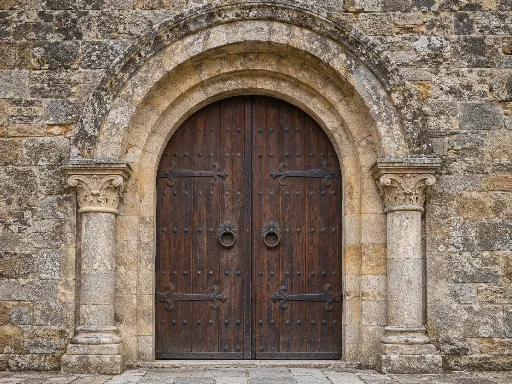
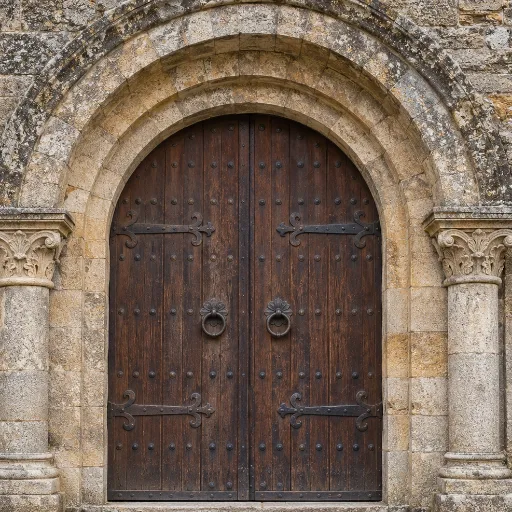
A square can keep the symmetry.
A centered architectural detail can stay centered. A square is a shape, not a requirement to move every subject off-center.
Generated demonstration source; actual CropBetter export.
Choose the frame for your next task
Each tool starts with the frame ready for its purpose.
Photo cropping tool
Compare composition ideas, fine-tune A or B, and keep your preferred framing.
Open toolCrop an image to 16:9
Start with a wide frame for a video cover, a screen or a landscape photo.
Open toolFacebook cover cropper
Start at 851:315 and check how your cover may appear on desktop and mobile.
Open tool
Make a 1:1 crop without stretching
This tool starts with the square ratio locked, so you do not need to find the preset after choosing a photo. A square has equal width and height. Turning a rectangular photo into one means choosing which parts to leave out; it does not mean squeezing the picture or adding a border. CropBetter keeps the proportions of the people and objects inside the frame unchanged.
Look at both previews, then move the frame toward the detail you want to keep. For a portrait, check hair, hands, and the space around the face. For a product, check the corners and anything that explains its size. Each option has its own composition intent and reason. Choose Edit to adjust a version, or click its photo to keep it and continue. Keep the one you prefer, or keep both to compare later. You can change the ratio at any point if a square turns out to remove too much.
Choose what a square should emphasize
A square can make a small subject easier to notice by removing unused space at the sides of a landscape photo. It can also make a balanced, centered scene feel calm. Before moving a subject to a thirds intersection, look for symmetry that you might want to preserve. The doorway example keeps the visual relationship between the central opening and the details around it, rather than treating every centered subject as a mistake.
Preview the crop at roughly the size it will be viewed. Tiny profile pictures need a clear, recognizable subject, while a square post may still benefit from its setting. The tool does not check every platform's interface overlays or guarantee a safe zone for a profile circle. Leave some breathing room if the final site may cover the edges. Export keeps the native square dimensions shown in the panel; it does not turn a small source into a larger or sharper photograph.
Frequently asked questions
Is the square preset selected automatically?
Yes. New photos on this page begin at 1:1 with the ratio locked. Both initial A/B frames use that ratio. Manual edits stay with each version, and you can still choose a different ratio from the toolbar.
Will the output be 1080 × 1080?
Only if the native crop actually contains 1080 pixels in each direction. CropBetter does not upscale to a platform's suggested dimensions. The displayed export size tells you how many original pixels your square retains.
Can I keep the original too?
Your source file is never overwritten. Keeping both saves two independent crop choices for export. If you also want a full-frame version, choose Original on one draft and keep that version before exporting.
Can I crop a transparent PNG?
Yes. PNG export preserves transparency in the retained area. JPEG cannot store transparency and uses a white background. Review the format choice before downloading logos, cutouts or other transparent images.