
Crop an image to 16:9
Frame a wider view, with 16:9 already selected.
No uploads, no AI-generated images — your photo never leaves your device.
Batch mode: up to 5 photos · analyzed on your device
A wider frame changes the emphasis.
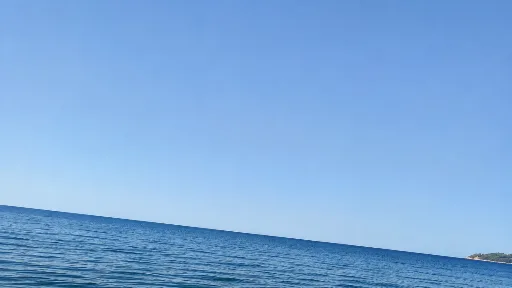
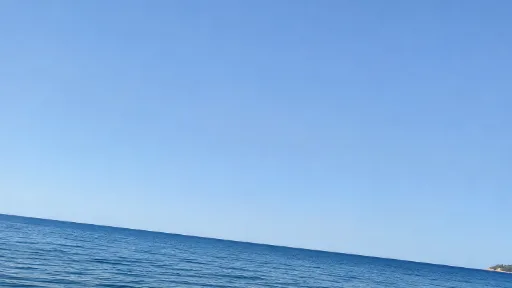
A landscape crop can keep the horizon and simplify the space above it. Fine rotation remains your choice.
Generated demonstration source; actual CropBetter export.
Choose the frame for your next task
Each tool starts with the frame ready for its purpose.
Photo cropping tool
Compare composition ideas, fine-tune A or B, and keep your preferred framing.
Open toolCrop an image into a square
Start at 1:1 for a profile picture, a product photo or a square post.
Open toolFacebook cover cropper
Start at 851:315 and check how your cover may appear on desktop and mobile.
Open tool
Crop a wide image for a screen
The 16:9 ratio is wider than a traditional 3:2 photograph and much wider than a portrait taken on a phone. This page starts with that ratio selected. It removes the parts outside the wide frame without stretching the scene. A tall photo may lose a substantial amount from the top and bottom, so check whether the subject still fits before deciding that the format is right for it.
Choose a photo and compare the locally analyzed 16:9 compositions. Click a result photo to keep it, or choose Edit and drag that version to decide how much foreground or sky to keep. If an obvious long edge appears tilted, use the level guide and fine-rotation control to straighten it by eye. Rotation automatically constrains the available crop to the photograph. Keep one version or both, then export the selected frames. The tool remains on this same page throughout the process and does not create a separate result URL.
Leave room for the final layout
A wide image often appears behind a title, inside a video layout, or across a presentation slide. Decide which part of the photograph needs to stay visible and where other material will sit. Empty space is useful when it gives text room to breathe; it is distracting when it pulls attention away from the subject without a purpose. A close crop and a contextual crop can both be worth keeping for different uses.
A 16:9 file is not automatically a finished video thumbnail. CropBetter does not add text, logos, backgrounds or generated details, and it does not know which overlay a destination will apply. Review important edges in that destination before publishing. The native export may be smaller than 1920 × 1080 if the original crop contains fewer pixels. That is an honest limit of the source photo, rather than a reason to enlarge it and imply that new detail has been recovered.
Frequently asked questions
Is 16:9 the same as 1920 × 1080?
16:9 describes a proportion, while 1920 × 1080 describes a particular pixel size with that proportion. Many other sizes also match it. CropBetter shows the native output dimensions before export and does not upscale. Fine rotation resamples existing pixels and crops empty corners.
Can I straighten the horizon?
Yes. A clear landscape horizon may receive an optional leveling suggestion. Apply it to rotate and crop empty corners, or adjust manually with −15° to +15° fine rotation in 0.1° steps and the level guide. Rotation resamples pixels; the export panel reports the angle and area cropped. A 90° control is available for quarter turns.
Does a 16:9 crop add black bars?
No. The output is the crop itself. Space around a preview is part of the editing surface, not a border added to the exported file. A source with transparent pixels can retain them in PNG; JPEG uses white for transparency.
Can I export a group of wide crops?
Yes. Review each photo, keep A, B or both, then choose All kept frames. Multiple files are generated one original at a time and packaged as one local ZIP. Unconfirmed photos are not silently included.